
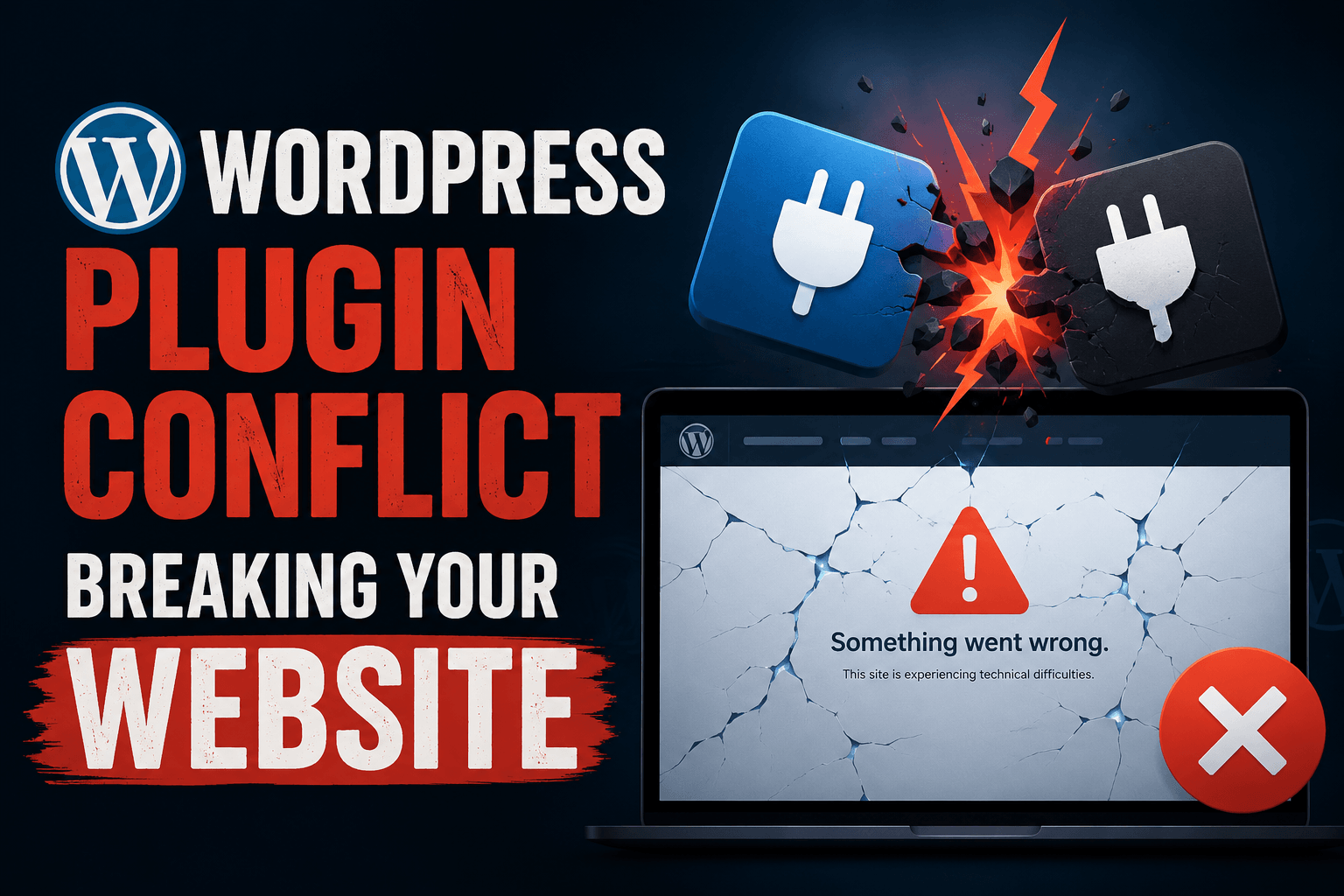
One of the most common issues in WordPress is plugin conflict. After installing or updating plugins, your site may suddenly break, show errors, or display a blank screen.
This happens because some plugins are not compatible with each other or with the current WordPress version. It becomes even worse when multiple plugins try to modify the same functionality (like SEO, caching, or security).
Solution: Identify and Fix Plugin Conflicts Safely
You can fix plugin conflicts step by step without losing your data:
1. Deactivate All Plugins
Go to your WordPress dashboard and deactivate all plugins. If you can’t access the dashboard, disable plugins via your hosting file manager or FTP by renaming the /plugins folder.
2. Reactivate One by One
Start enabling plugins one at a time. After each activation, check your site. The plugin that breaks the site is the conflicting one.
3. Replace or Update the Problem Plugin
Once identified, either:
- Update the plugin to the latest version
- Replace it with a more stable alternative
- Or contact the plugin developer for support
4. Avoid Too Many Similar Plugins
Don’t use multiple plugins that do the same job (for example, two SEO plugins or multiple caching tools).
Conclusion
Plugin conflicts are common in WordPress, but they are easy to fix with a systematic approach. Regular updates, careful plugin selection, and testing changes can keep your site stable and error-free.
Leave a Reply